Sign in & prepare
Sign in with Whop. Check supported models and install the WristCampus watch app. For setup, keep your phone online and your watch connected to Garmin Connect.
Plan on the web. Check on your wrist.
Start with chapter one, or jump straight to the watch controls for everyday use.
Sign in with Whop. Check supported models and install the WristCampus watch app. For setup, keep your phone online and your watch connected to Garmin Connect.
Set the school time zone, term start, teaching weeks and class times in Schedule settings, then add courses. Check dates, times and rooms in Today and the weekly timetable.
Choose phone authorization on your watch, then sign in and approve on your phone. Alternatively, use the 6-digit pairing code. Initial pairing fetches courses and tasks; fetching data requires an active Connect membership.
Add a course from an empty timetable slot or course management. Set its room, periods and teaching weeks, including odd/even weeks and multiple meetings. Give existing course text to your connected AI assistant, then review and confirm its proposed changes.
Use Today for your day and the day/week timetable to browse dates. Select a class to move, cancel, add a makeup class or change its room. Check whether the change affects one occurrence or a batch before saving. Use undo or restore when needed.
Add a task with its type, deadline, optional course and notes. Mark it complete when done. Manually sync changes to your watch.
In AI connections, copy the endpoint into an AI app supporting remote MCP and OAuth, then authorize it. Try ‘What classes do I have tomorrow?’ or ‘Add my math assignment, due Friday.’ Review and confirm writes. View history, confirm undo, or revoke access. No model API key is needed.
On button watches, use the confirm, back, previous and next controls; physical key names vary by model. On touch watches, tap the matching icons near the screen edge. Arrows switch items, or scroll text once details are expanded.
From Now, press Back to open the main menu. Back again from that menu exits the app. Menu: Now, Today’s schedule, Upcoming events, Choose date and Device settings.
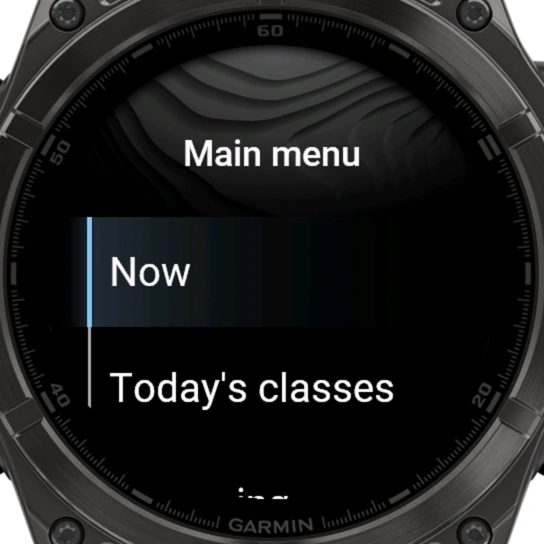
Fresh captures from the current app in the official Garmin simulator (fēnix 8). Sample courses and tasks; not physical-watch photos.
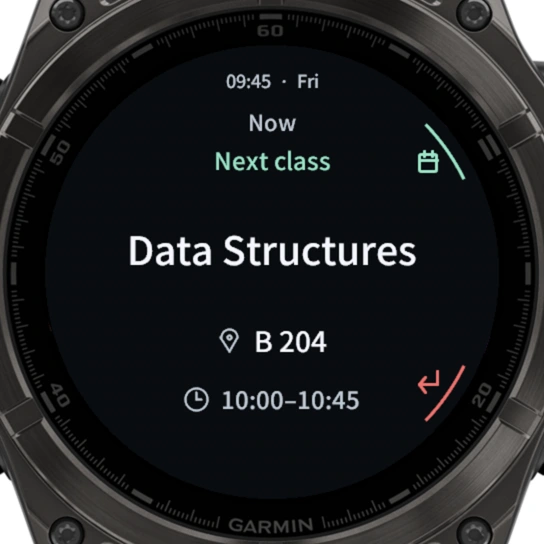
The app opens on Now. See your next class before lessons, and a countdown during lessons and breaks, alongside the room and times. Confirm opens today’s schedule. Back opens the main menu.
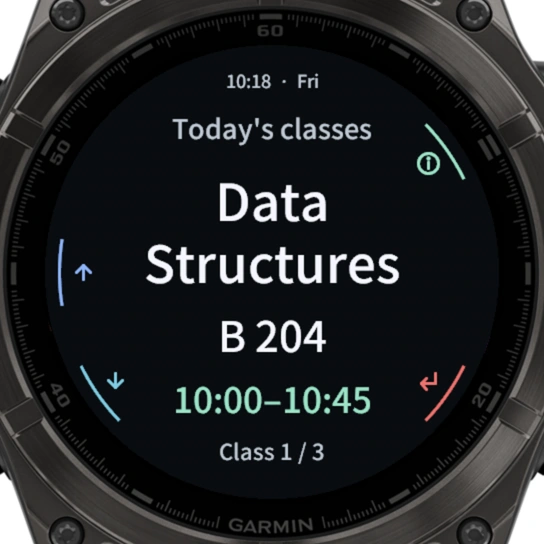
Main menu → Today’s schedule. Use Previous/Next to switch classes. Confirm expands the full name, times, room, teacher and notes; use Previous/Next to read longer text. Back collapses details; Back again leaves the day’s schedule.
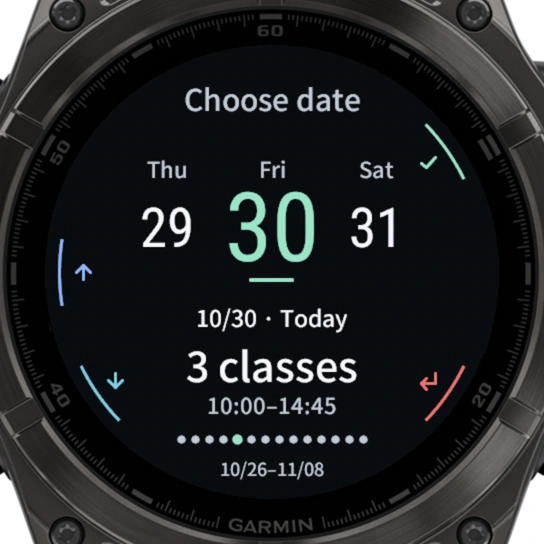
Main menu → Choose date. Use Previous/Next to change the date; touch users can also swipe left/right here. See the class count and first/last class times. Confirm opens that day’s classes. The picker covers this week and next week.
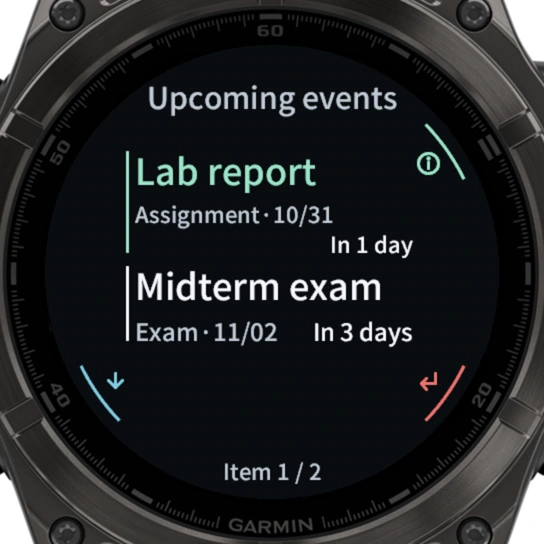
Main menu → Upcoming events. Use Previous/Next to select an item, then Confirm to read its deadline, days remaining and description. Scroll longer text with Previous/Next. Back returns to the list. Add, edit and complete tasks on the website, then sync.
Add WristCampus to your Garmin watch’s glance list; setup varies by model. It summarizes your current or next class. Select it to open the app. If it asks for an update, manually sync in Device settings.
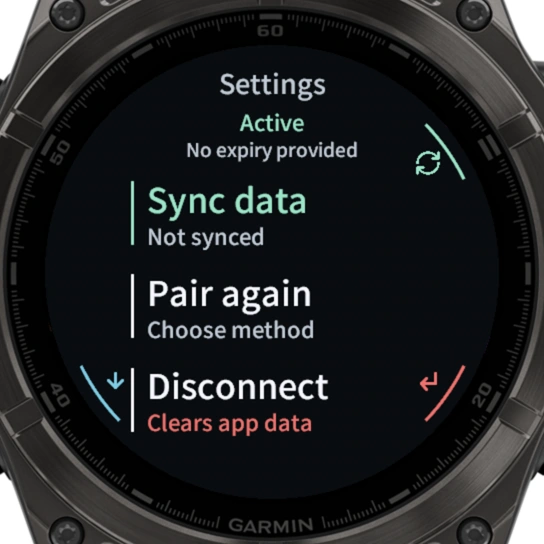
Wait for cloud saving to finish. On the watch, open Main menu → Device settings → Sync data. Initial pairing starts a sync; later updates are manual. Opening the app alone does not refresh the timetable.
Check the result and last successful sync time on the watch, then check the latest classes or tasks. For timeouts or partial updates, check your phone’s network and Garmin Connect, then retry. A website server-response record does not confirm what the watch screen displays.
After a successful sync, cached classes and tasks can be viewed offline within their date coverage and valid access period. Web changes do not immediately update the watch cache. Fetching new schedules or task updates needs an online sync.
Device settings shows binding and membership status, with Pair again and Unlink actions. Both clear the local binding and offline data. Sync again after switching accounts. Remove the cloud device record from Devices & sync on the website.
In My account, choose your language and appearance, or find home-screen installation guidance. Sign in again with Whop if your session expires.
Check Connect access and expiry in Devices & sync; manage renewals through Whop. If a purchase is pending, refresh membership and check your order before buying again. Canceling renewal preserves access until the paid period ends.
Export or restore a backup in My account. Restore replaces current data: review it first. Back up before resetting or deleting. Deleting your WristCampus account does not cancel a Whop subscription; manage billing first.
Check the school time zone, term start, term length and course teaching weeks. Save and sync again.
Keep the current browser draft. Retry or export a backup; do not clear browser data while an unsaved draft is needed.
Check your phone’s network, Garmin Connect and membership. Request a new code if it expired. Pair again if the binding is invalid.
Check permissions and confirm the proposal. Expired previews must be regenerated and confirmed. After saving on the website, manually sync the watch.